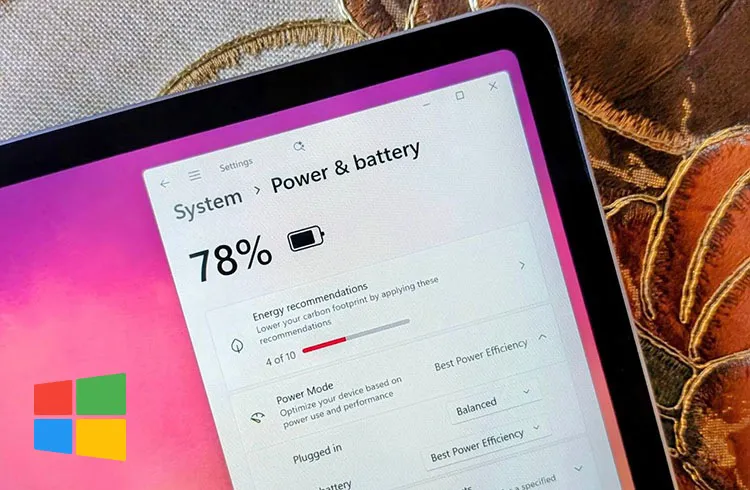
When modern laptops are kept plugged in, charge control circuits prevent overcharging; however, high temperatures and keeping the battery at full charge for long periods can hurt battery life. According to experts, the most practical protection is to use the manufacturer's charge limit feature and keep the device running cool.
That doesn't mean the battery never ages while plugged in. Lithium-based batteries lose capacity chemically over time even when they aren't being used. Charge level and temperature can affect how quickly that aging happens.
Does staying plugged in at 100% hurt the battery?
When the battery stays plugged in at 100%, there's no direct "overcharging" problem; the battery management circuit is designed to prevent that. But keeping lithium-ion cells at a very high state of charge for long periods isn't ideal for chemical aging.
At a high charge level, these cells sit at a higher cell voltage, and over the long term that's among the factors that can accelerate chemical degradation inside the cell. The effect isn't big enough to notice within a few hours; it can play a role in capacity loss when the same usage continues for months and years.
That's why some laptop makers offer a charge limit feature. If the device will mostly be used plugged in like a desktop, it may be preferable to keep the battery at around 60%, 80%, or another level set by the manufacturer. The feature goes by different names depending on the brand; on some computers it can be enabled from the manufacturer's own app, on others through the BIOS or UEFI, and some models learn your usage habits and manage charging automatically.
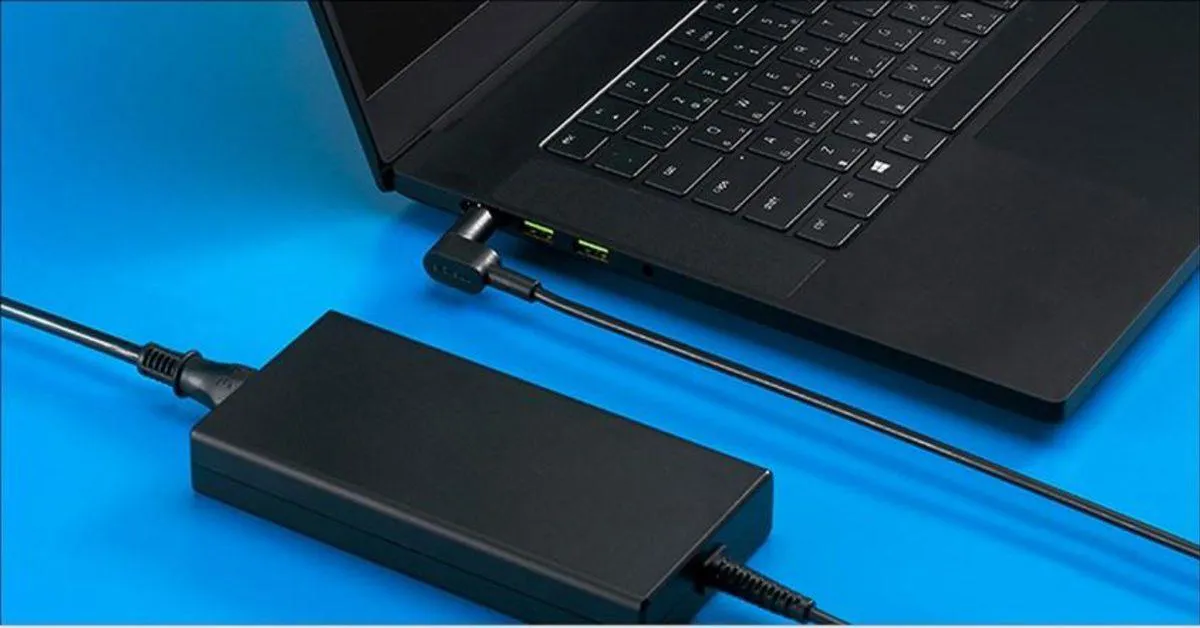
The battery's real enemy may be high temperature
When people talk about laptop battery life, attention usually goes to the charge percentage, but temperature is one of the most critical factors. Lithium-ion cells can undergo faster chemical aging at high temperatures. If a device is both constantly charging and running hot, two unfavorable conditions can occur at the same time.
While gaming, editing video, or running the processor and graphics card under heavy load for long periods, the computer produces a significant amount of heat. If the battery sits close to hot components, it can be affected by that heat. In thin laptops, packing components close together makes thermal management even more important.
Using the device on a bed, couch, or blanket can block the air intakes; when the fans can't draw enough air, the processor and graphics card as well as the internal components run hotter. Using a hard, flat surface helps preserve airflow. Dust building up in the fans and vents over time can also raise temperatures; if you're seeing noticeably higher temperatures than before under normal use, it's worth checking the state of the cooling system.

Does limiting charging to 80% actually work?
For constant plugged-in use, a charge limit stands out as one of the most practical battery protection methods. Many manufacturers offer different features that lower the battery's maximum charge level, so when the device is left plugged in for a long time, the battery isn't constantly sitting at 100%.
Although 80% is a commonly used limit, it shouldn't be treated as a fixed rule for every laptop. Some manufacturers may set different percentages or manage the system automatically. The goal here isn't to keep the battery as low as possible; it's to reduce the time the battery spends sitting at a high cell voltage.
On days when you'll be out, you can remove the limit and fully charge the battery. On a computer without a charge limit, there's no need to constantly watch for 80% and unplug and replug the adapter by hand; if there's an automatic limiting feature, using it is more convenient, and if there isn't, keeping the temperature under control and using the device normally is enough.
Do you have to keep a laptop between 20% and 80% at all times?
One of the most frequently repeated pieces of advice about phone and laptop batteries is to always keep the charge between 20% and 80%. While this range can be a helpful approach for protecting battery health, it isn't a strict rule users have to follow constantly.
Lithium-ion batteries operate under easier conditions when they aren't left at very low or very high charge levels for long periods. Still, there's no need for a habit like plugging in at 79% or immediately unplugging at 81%. Draining the battery down to 0% often isn't necessary either; modern batteries don't need to be fully drained and recharged to 100% with every use.
What matters here is how you use the device. Someone who works at a desk all day can turn on the manufacturer's charge limiting feature; for someone who works on the go and needs the battery's full capacity, a 100% charge makes much more sense. Since the battery is a consumable component, it's normal for it to lose a certain amount of capacity over the years no matter how carefully it's used.
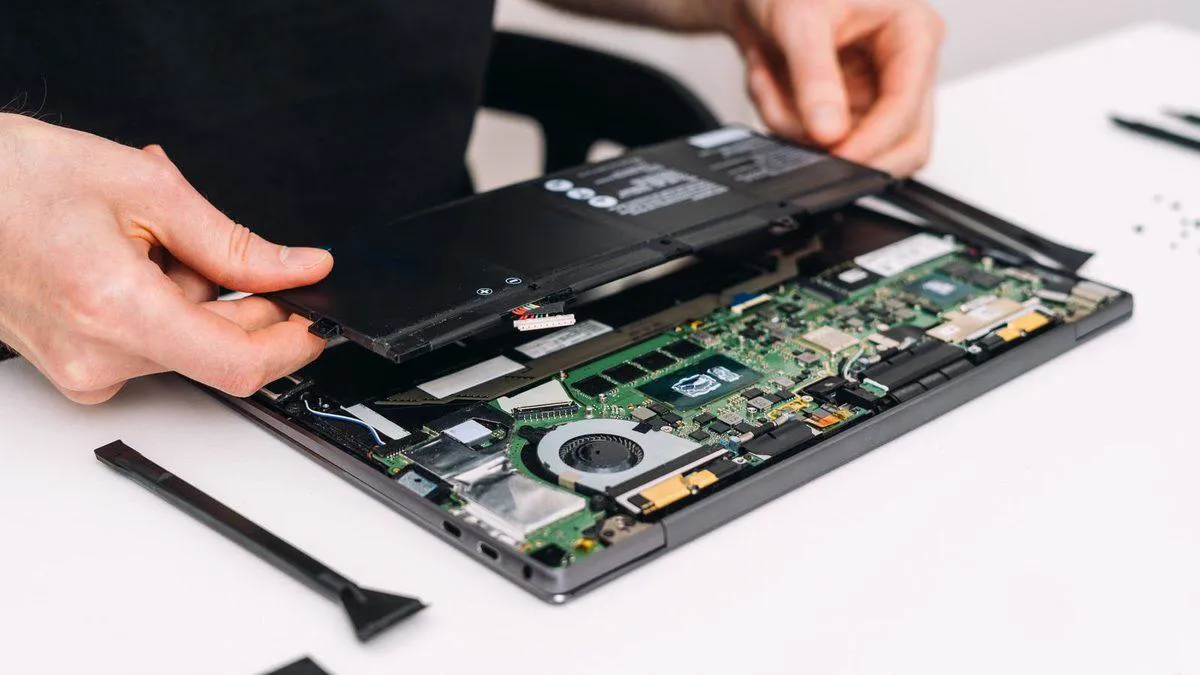
Should you game with the laptop plugged in?
The situation is a bit different for gaming laptops. Powerful processors and graphics cards may limit their performance to keep power consumption under control when running on battery; that's why many gaming laptops reach their highest performance when plugged into the adapter.
Unplugging the adapter during gaming can cause frame rates to drop, the graphics card to run at lower power, and the battery to drain very quickly. A powerful graphics card and processor can use up the battery's capacity in a short time under heavy load.
So gaming with the laptop plugged in is considered normal. What to watch here is again temperature; when the processor and graphics card draw high power, the fans spin faster and the chassis temperature rises. It's also important to use the adapter that came with the device or one the manufacturer recommends with sufficient power for performance. A lower-powered USB-C adapter may be enough for basic use on some laptops, but it may not meet the device's power needs during gaming.
Is unplugging and replugging the adapter constantly healthier?
Unplugging the adapter when the laptop hits 100% and plugging it back in when it drops to 30% or 40% to protect the battery may seem logical at first glance, but repeating this every day causes the battery to be charged and discharged unnecessarily.
Charge cycles are also taken into account when evaluating the lifespan of lithium-ion batteries. A cycle doesn't always mean dropping from 100% to 0% in one go; partial uses at different times add up to cycle usage as well.
If the laptop is already on a desk and near an outlet, there's no clear advantage to unplugging the adapter just to drain the battery. The computer's charge management system can handle this more consistently than a user can. Using the battery occasionally certainly isn't harmful; the problem is turning constant draining and recharging into a routine in the name of protecting the battery.
What should you do if the laptop will stay plugged in for months?
People who use a laptop instead of a desktop at home or in the office may leave the device on the same desk for weeks. In such a scenario, using the battery protection feature makes sense if it's available; limiting the charge to the level the manufacturer recommends prevents the battery from sitting at 100% for months.
The environment the computer is in also matters. A desk in direct sunlight, a spot next to a hot radiator, or surfaces that block the air intakes don't create good conditions for long-term use.
If the laptop won't be used for a long time at all, the situation is different. Storing the device turned off for months isn't the same scenario as running it plugged in every day. For long-term storage, rather than leaving the battery completely empty or constantly at 100%, it's worth checking the manufacturer's storage recommendation; for many lithium-ion batteries, a mid-level charge is considered better suited to long-term storage. On older laptops with removable batteries, taking the battery out was a common approach, but since most modern computers have the battery inside the chassis, that isn't necessary.

How can you tell battery health is declining?
Battery capacity decreases as it's used and ages. A laptop that ran for hours when new may last much less time under the same use a few years later; that change alone doesn't mean a failure.
The most obvious sign is a serious drop in the runtime you get on a full charge. The battery percentage dropping suddenly or the computer shutting down unexpectedly at a certain percentage can also indicate a problem on the battery side.
On Windows, you can generate a battery report and compare the battery's design capacity with its current full charge capacity. Manufacturers' own apps also show information about battery health, cycle count, and battery status on some models.
Physical swelling, on the other hand, is a situation that should be evaluated differently. If the touchpad or chassis is lifting upward, a gap is forming in the body, or you suspect the battery is swollen, it's recommended to seek technical support rather than continuing to use the device. It isn't possible to completely prevent normal capacity loss; the goal isn't to keep the battery like new forever, but to reduce unnecessary wear and preserve its usable capacity for longer.
What's the most sensible approach when using a laptop plugged in all the time?
If the laptop spends most of the day on a desk, there's generally no downside to using it plugged into the adapter; modern charging systems are designed to prevent the battery from being overcharged in an uncontrolled way.
If the device has a battery protection or charge limit feature, enabling it can be a good choice for long-term desktop use. Setting a limit around 80% or another level the manufacturer specifies reduces the time the battery spends sitting fully charged.
Just as important is temperature. Not using the laptop in a way that blocks the air vents, not preventing cooling under heavy load, and not leaving the device in very hot environments all contribute to battery health. There's no need to constantly calculate percentages and unplug and replug the adapter several times a day; leaving charge management to the device's own systems as much as possible and paying attention to temperature and usage conditions stands out as a more practical approach.