How to Clean Up WhatsApp Storage Space? A Step-by-Step Guide
Through WhatsApp's storage management section, you can see how much space each chat takes up, find large files, and delete only the media files you want. By adjusting auto-download settings, you can also prevent the app from quickly filling up again.
The storage space WhatsApp takes up on your phone can exceed several hundred megabytes by a wide margin if you've been using the app for a long time. Videos from group chats, photos sent years ago, and documents can accumulate and take up serious space. Thanks to the app's own storage management section, you can remove only the content you no longer need without having to delete all chats or uninstall the app.
How to clean up WhatsApp storage space?
Within WhatsApp, there is a dedicated section for reviewing and managing storage space. When you enter this section, you can see the media files the app keeps on the device and select and delete content you no longer need.
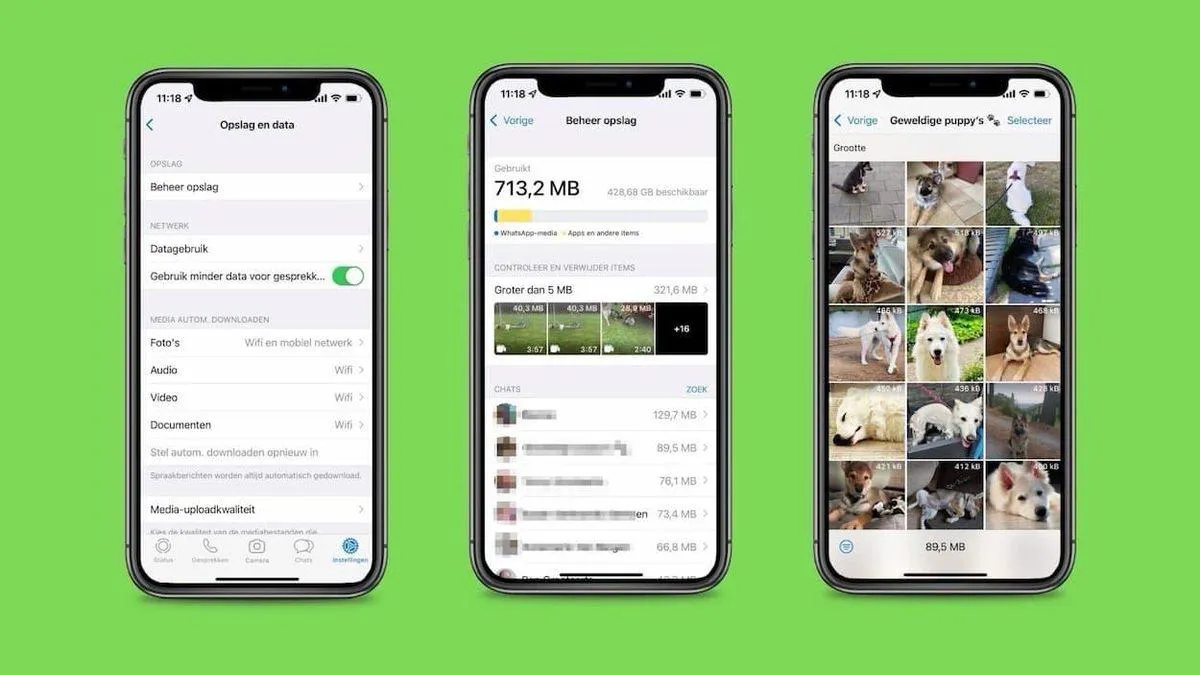
The steps to follow are as follows: Open the WhatsApp app, go to Settings, tap on Storage and data, then open the Manage storage section. On this screen, you can review the space the app occupies and the media categories. Open the section or chat you want to clean up and select the photos, videos, and other files to delete; finally, tap the trash can icon to confirm the action.
The screen appearance may differ slightly on Android and iPhone; however, storage management can be accessed through WhatsApp settings on both platforms. It is recommended to review the files before starting the deletion process. The reason the app takes up too much space may be a few large videos; in this case, starting with the largest files instead of deleting hundreds of small photos helps free up space in a shorter time.
How to find the files that take up the most space?
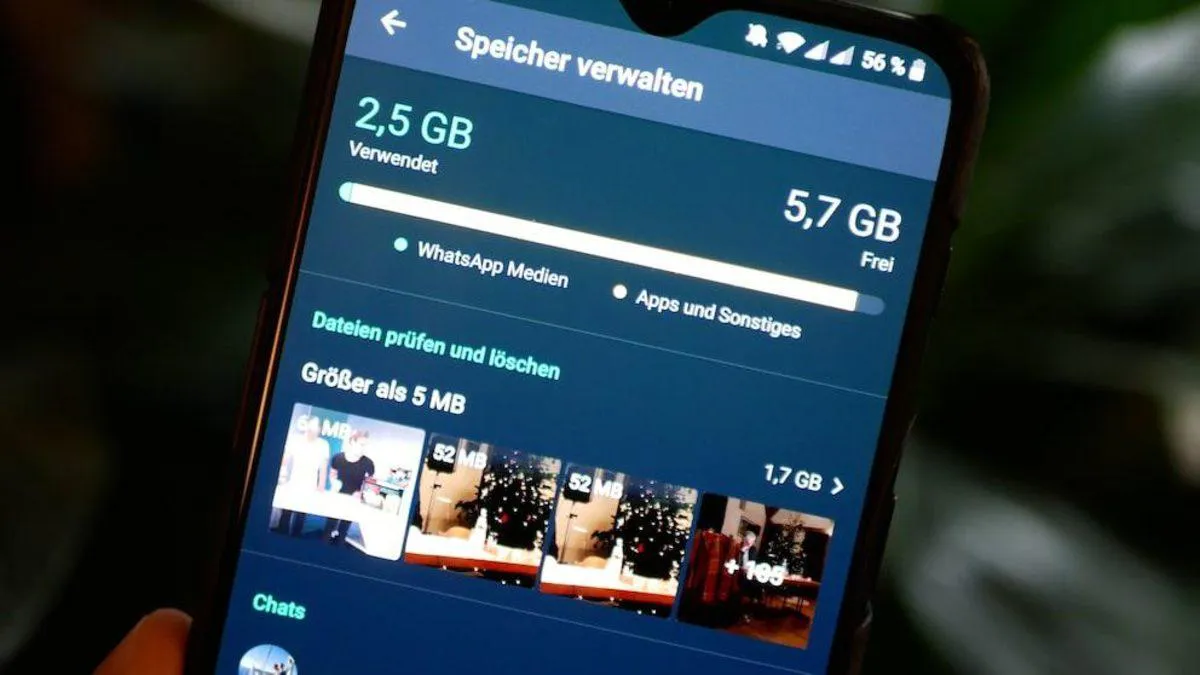
There's no need to check all WhatsApp photos one by one. The Manage storage screen can be reviewed in a way that makes large-sized content easier to notice.
The categories offered in this section may vary depending on the app version. Groupings such as large files or frequently forwarded content may be visible. In cases where files can be reviewed by size, priority can be given to the videos using the most space.
Videos a few minutes long, high-resolution images, and large documents can take up more storage space than dozens of small photos. Therefore, before starting cleanup, looking at which content creates the main load gives faster results. If the small preview of a file doesn't look familiar, it is recommended to open and check it rather than deleting it immediately; it could be an old vacation video, a document sent for work, or a photo you might need later.
If there is an important file you want to keep, you can save it to another location on your phone or to a cloud storage service you use before deleting it. Then, by removing the copy in WhatsApp, you can reduce the space the app uses.
Which WhatsApp chat takes up how much space?
Storage space can be reviewed not only by file types but also by chats. In the lower section of the Manage storage screen, individual conversations and groups can be listed along with the space they occupy.
Chats where media is shared intensively usually appear at the top of the list. Family groups where photos and videos are sent every day, friend chats, or communities that have been active for a long time can use several gigabytes of space over time.
When you open a chat that takes up a lot of space, you can review the media content in that conversation. From here, you can select and remove files you no longer need; thus, without deleting the entire chat, you can intervene only in the content filling up storage space. This method allows for more controlled cleanup in old groups that contain important messages.
A chat appearing at the top doesn't necessarily mean that chat is unnecessary. The ranking should be evaluated to understand which conversations use more space on the device; the decision to delete should be made after viewing the content. This way, you can prevent accidentally removing media you want to keep just by looking at file size.
If you delete WhatsApp files, are messages also deleted?
One of the issues that causes the most hesitation during storage cleanup is whether messages will also be lost. Deleting specific photos, videos, or files from storage management is not the same as deleting an entire chat.
When the selected media files are removed in storage management, the entire conversation is not automatically deleted; other messages in the chat can remain in the account. However, it should not be assumed that the removed media file will be available again later. Before cleaning up a valuable photo or video, you should check that a copy exists elsewhere.
Similarly, the results of clearing a chat, deleting a chat, and removing specific media files from the storage section can differ from one another. If you're only trying to free up space, looking at the files in storage management first rather than removing all conversations allows you to act more controllably.
After cleanup, you can check again on the same screen how much the space used by WhatsApp has changed. This way, you can see how much difference the action made in terms of storage.
How to prevent WhatsApp from taking up too much space again?
After deleting a few gigabytes of files, it's possible for the app to reach the same size again within a while. If dozens of media files are received from active groups every day, the cleaned space can fill up again with new photos and videos.
One way to reduce this is to control which media are automatically downloaded. From WhatsApp's Storage and data section, the preferences for automatic downloading of photos, videos, and other content over mobile data or Wi-Fi can be changed. Thus, some files that are never opened can be limited from being downloaded to the phone on their own.
Crowded groups can also be checked occasionally. If hundreds of videos have accumulated in a group you haven't looked at for months, you can open only that chat from storage management and weed out large files.
If you constantly experience free space problems on your device, you don't need to wait for the app to completely fill up before cleaning. Looking at the Manage storage screen from time to time allows you to see which chat is growing rapidly.
The goal when freeing up space in WhatsApp is not to delete as many files as possible. First weeding out large and unnecessary content, then leaving the photos and documents you want to keep, offers a much more controlled cleanup. This way, while preserving message history that has been there for years, it becomes easy to get rid of a few old videos filling up your phone.