How to Loop on YouTube? Step-by-Step Guide for Computer, Phone, and TV
The loop feature on YouTube is enabled by right-clicking the video player on a computer, and in the mobile app through additional options in the video settings. In playlists, the loop icon's different modes allow choosing between repeating a single video and the entire playlist.
The loop feature used to continuously replay a video or playlist on YouTube is activated from different menus depending on the device being used. On a computer, the feature can be turned on in seconds by right-clicking the video player, while in the mobile app it is located under the additional options in the video settings. Until the loop is turned off, the same content automatically starts over from the beginning.
Looping on a Computer
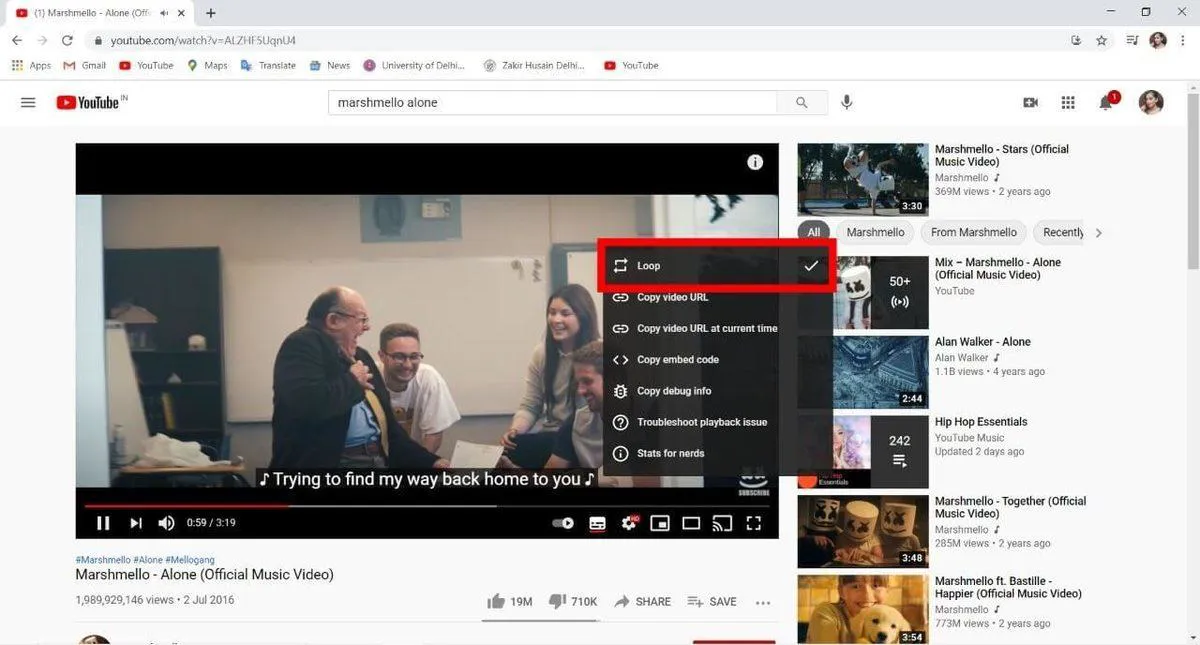
To turn on the loop feature on a computer, there is no need to enter account settings. The relevant option is located directly in the right-click menu of the video player.
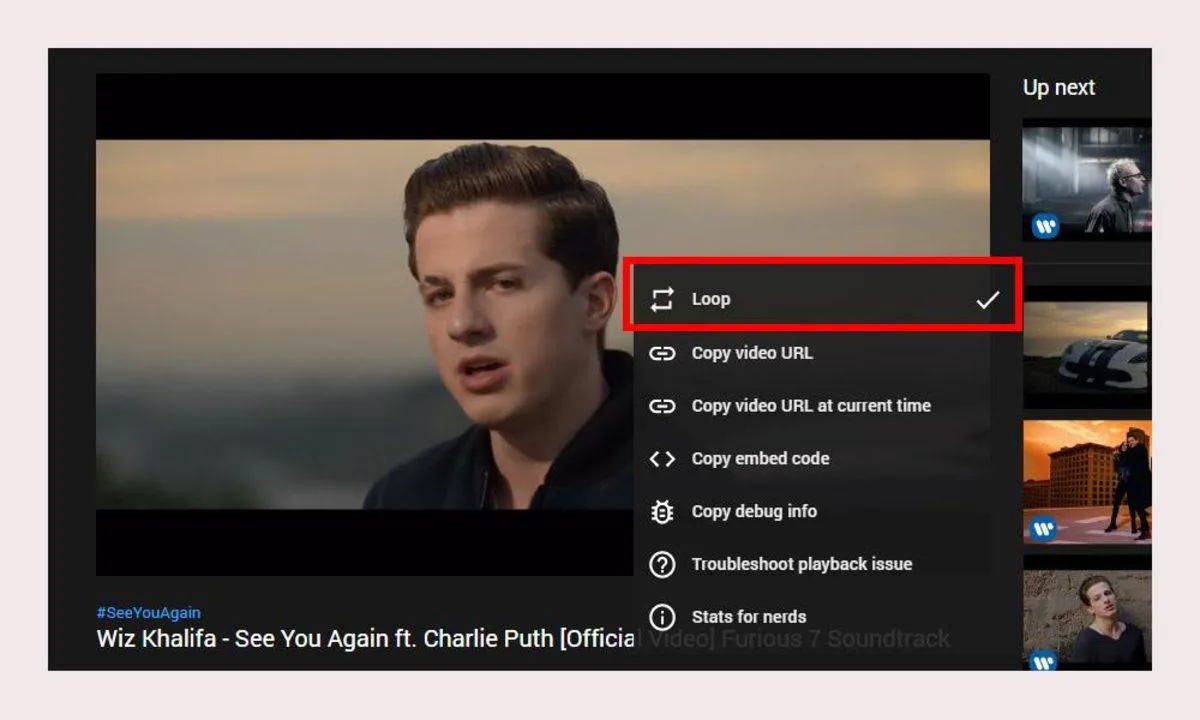
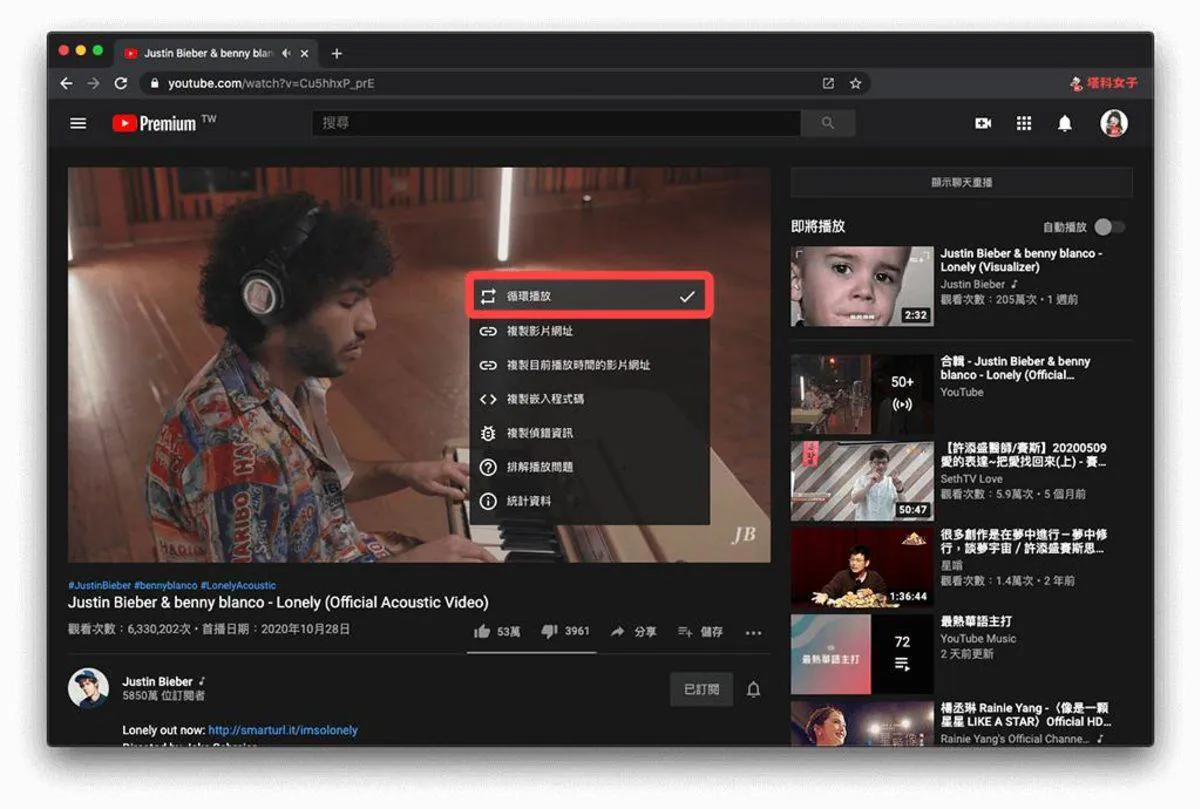
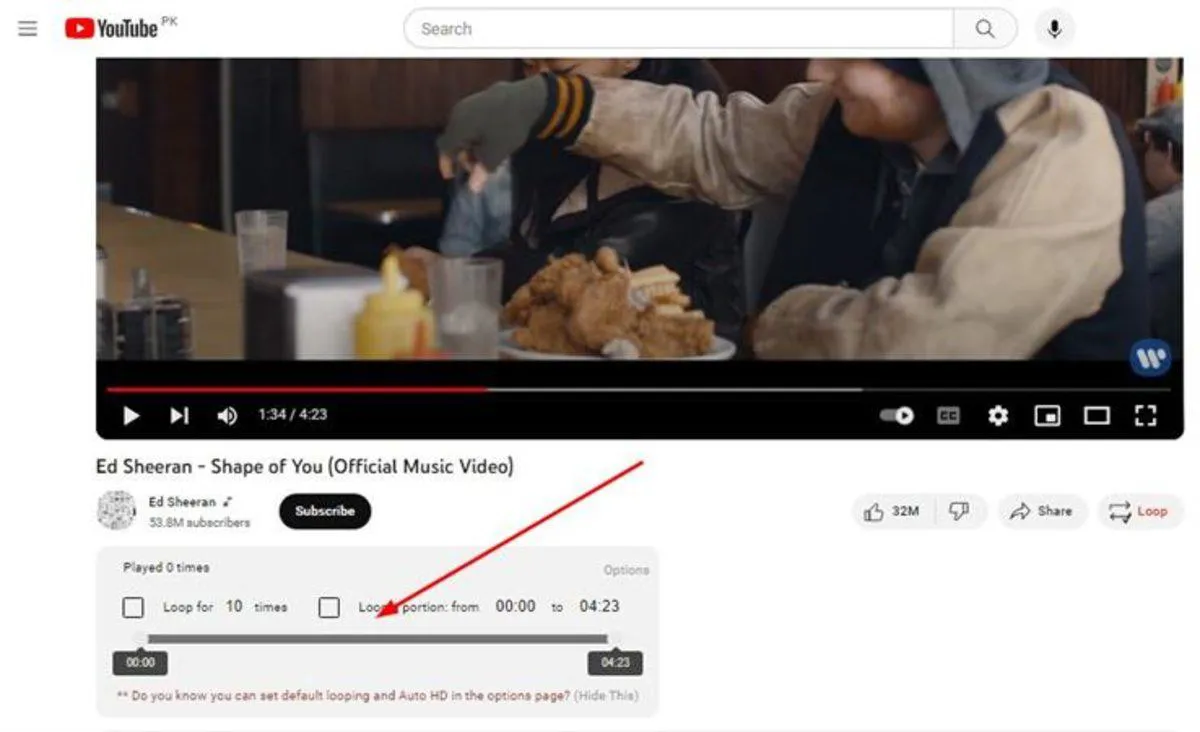
To loop a video, open the relevant video on YouTube, right-click anywhere on the player, and click the Loop option in the menu that appears. Then the video continues playing as normal.
When looping is enabled, the video automatically returns to the beginning as soon as it reaches the end. No additional action is required for each repetition. This method can be used while listening to music, for ambient sounds played while studying, for short tutorial videos, or for content where a specific part is wanted to be watched repeatedly. Unlike autoplay, YouTube does not redirect to another video in this case.
To turn off looping, it is enough to right-click the player again and press the Loop option once more. When the checkmark is removed, the continuous return to the beginning when the video ends also stops.
Loop and autoplay should not be confused with each other. When autoplay is on, YouTube may switch to different content after the current video ends. Loop, on the other hand, restarts the video being watched itself. If the same song is wanted to be listened to back to back, the feature to use is loop.
To loop a video, there is also no need to install a browser extension or make changes to the video's link. The option in YouTube's own player performs the action directly.
Where Is the Loop Option on Phone?
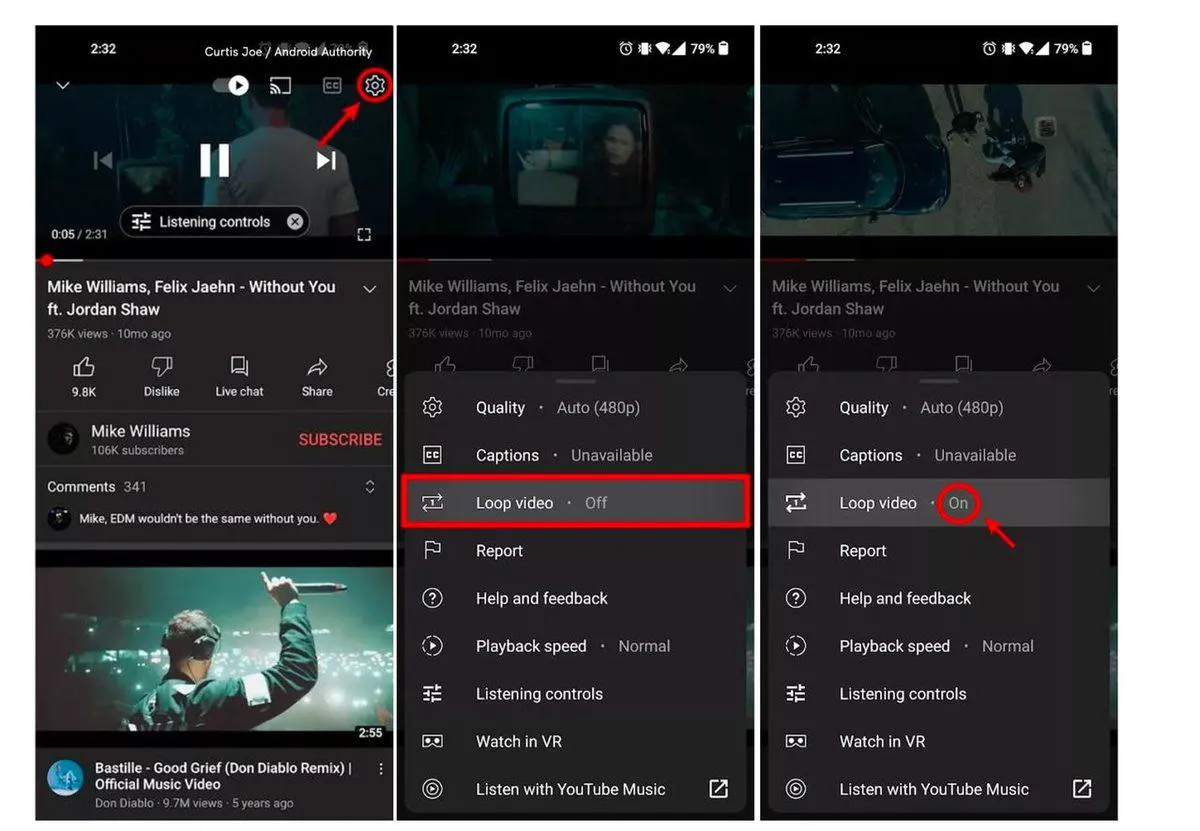
Since the mobile app does not have a right-click menu like on a computer, the location of the loop option may not be noticed at first glance. On Android phones and tablets, the feature can be turned on from the video player's settings.
To loop a video on a phone, open the YouTube app, play the relevant video, and tap the video to display the player controls. Then tap the settings icon, open the additional settings section, and enable the Loop video option.
After this action, when the video ends, it restarts instead of switching to another content. When looping is no longer needed, the option can be turned off by returning to the same menu. On iPhone and iPad, the process is similarly performed through video settings. After opening the video, it is enough to enter the player's settings and enable the Loop video control among the additional options.
Even if looping is on in the mobile app, next video suggestions may continue to appear on the screen. This does not mean the feature is not working. As long as looping is active, the current content being played is restarted when it reaches the end.
If YouTube is used for listening to music on a phone, the loop feature can also be used to play a single track continuously. However, if multiple videos are wanted to repeat in a specific order, it is more appropriate to proceed through a playlist rather than looping a single video.
Restarting a Playlist from the Beginning
On YouTube, not only a single video but also an entire playlist that has been created or followed can be looped. When this feature is turned on, playback restarts from the first video after the last video in the playlist is completed.
To loop a playlist, open the relevant playlist on YouTube, play one of the videos in the playlist, display the playlist control box, and press the loop icon once. When the playlist reaches the end, it restarts from the first video.
As long as the loop icon is active, the playlist repeats within itself. Thus, there is no need to return to the screen to restart a long music list, exercise videos, or content left playing in the background when they end. The logic does not change in the mobile app either; after opening the playlist, the loop icon in the list controls that appear below the video can be used. The location in the interface may show minor differences depending on the app version, but the function remains the same.
If the playlist is wanted to play only once, the loop icon can be turned off after the process is completed. If the icon is not active, playback behavior continues according to the current YouTube settings after the last video in the playlist is completed.
Difference Between Single Video Loop and Playlist Loop
The loop icon used in playlists has another function as well. When the icon is pressed once, the entire playlist repeats, while when pressed a second time, the number 1 appears in the middle of the icon.
This mark indicates that the currently open video will repeat instead of the entire playlist. When the video reaches the end, it does not switch to the next content in the playlist and the current video restarts.
This distinction can be especially useful in long playlists. Those who want to play the entire playlist in the background can use the normal loop mode, while those who want to stay on a specific song or video can use the loop option marked with 1.
When the loop icon is pressed again, the repeat mode is turned off. Thus, the playlist returns to its normal order and videos progress one after another. Looping a single video directly from the watch screen and using the option marked 1 within a playlist are similar in result. The difference is that in the second method, the video is open as part of a playlist.
Looping on TV
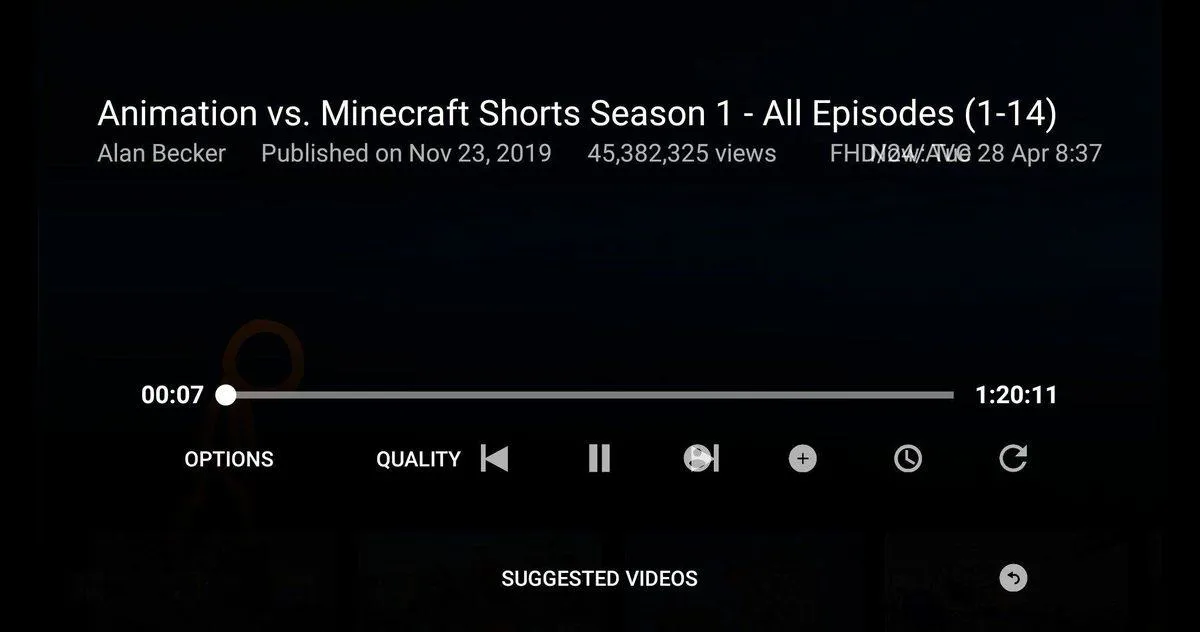
Those who watch YouTube on a smart TV or game console can access the repeat option from the player controls. Unlike the menus on mobile and computer, the action here is performed via the remote control or controller.
While the video is playing, the player controls are opened with the remote control or game controller. Then, the Repeat option is found and the mode that makes the current video repeat is enabled. On some devices, this option can also be seen within video settings.
A similar method is applied for playlists. After starting the playlist, the playlist can be made to restart when it reaches the end by using the repeat control.
Since the interface of television applications may vary by brand, operating system, and YouTube version, the location of the option on the screen may differ. Therefore, instead of looking directly in a specific corner, it is recommended to check the Settings and Repeat controls in the video player.
What to Check If Looping Does Not Work
If the video switches to another content even though looping is enabled, first it can be checked whether the repeat option is really on. In single video loop, the same content should restart when the video reaches the end. If a playlist is being used, it is recommended to pay attention to the status of the loop icon. If there is a 1 in the middle of the icon, only the current video repeats. The normal loop icon makes the entire playlist return to the beginning after reaching the end.
If the option does not appear in the mobile app, it can be ensured that the current version of YouTube is being used. Due to interface changes, the location of some options may vary from time to time. Checking the settings menu and additional settings section in the video can be useful in this case. Confusing the loop feature with autoplay can also be the source of the problem. Autoplay aims to switch to another video after the content being watched ends. Loop, on the other hand, restarts the current video or the selected playlist.
Thanks to the loop feature on YouTube, a favorite song, a long study video, or a prepared playlist can be repeated without manually restarting it. While right-clicking or the settings menu is sufficient for a single video, attention must be paid to the different modes of the loop icon in playlists.